

We Are Expanding! Register To See If We Are Bringing Fiber Broadband To Your Community.
REGISTERLive Connected
At All Points Broadband, we empower communities by bringing utility grade broadband to underserved markets, deploying fiber and state-of-the-art fixed-wireless technology to homes and businesses in communities throughout Virginia, West Virginia, Maryland and Kentucky.
Unlimited Broadband, Fast Speeds, and Superior Customer Service!
All Points Broadband is the leading Internet Service Provider in Virginia, Maryland, West Virginia, and Kentucky
24×7 TECHNICAL SUPPORT
24 Hours a Day, 7 Days a Week
Talk to a Live TechnicianFAST DOWNLOADS
Every package includes unlimited data, and we provide fast speeds for the Extreme user!
LOW LATENCY
Our networks connect to the major exchanges, with super low latency! This is great for VPN’s and Gamers alike!
VIDEO STREAMING
Unlimited Data Usage for Video Streaming
What our Customers say about APB
Poco M.
Our APB rep went above & beyond. His expertise on install, surveying & about APB services was a breath of fresh air. Very knowledgeable & took his time to ensure everything such as our firestick & cameras worked. Even followed up after the services as we upgraded & he helped w/ that too. Wish every time we needed help we got someone as reliable & caring as him. Clean job & well done!
Emily B.
We just got this service installed. They were wonderful!! Extremely professional, knowledgeable, and helpful! They made sure everything was working before they left and continuously asked if I had any questions and explained things really thoroughly. They were fast and efficient and really patient with my 2 year old who kept getting in their way. Really nice guys and great customer service!!
Lucas E.
My wife said Bobby was great to deal with during the install. He gave some tips and tricks on some things. We’ve had it one week and have had to unplug/reset 3 times to get it working again. The internet is great when it works, great install, so far reliability is not great. If that changes I will update my review. Update: contacted customer service and have not had any issues since. Nice to deal with.
Carol C.
Person on phone was very helpful and pleasant. Two men who did installation were amazing and professional. They gave me advanced warning that I needed to decide on a line name and password. The biggest help for me was that they made sure all my digital pieces worked with the installation and that the printer worked with the laptops, cell and tablet.
Questions? View a list of frequently asked questions to learn more about our services
Latest News
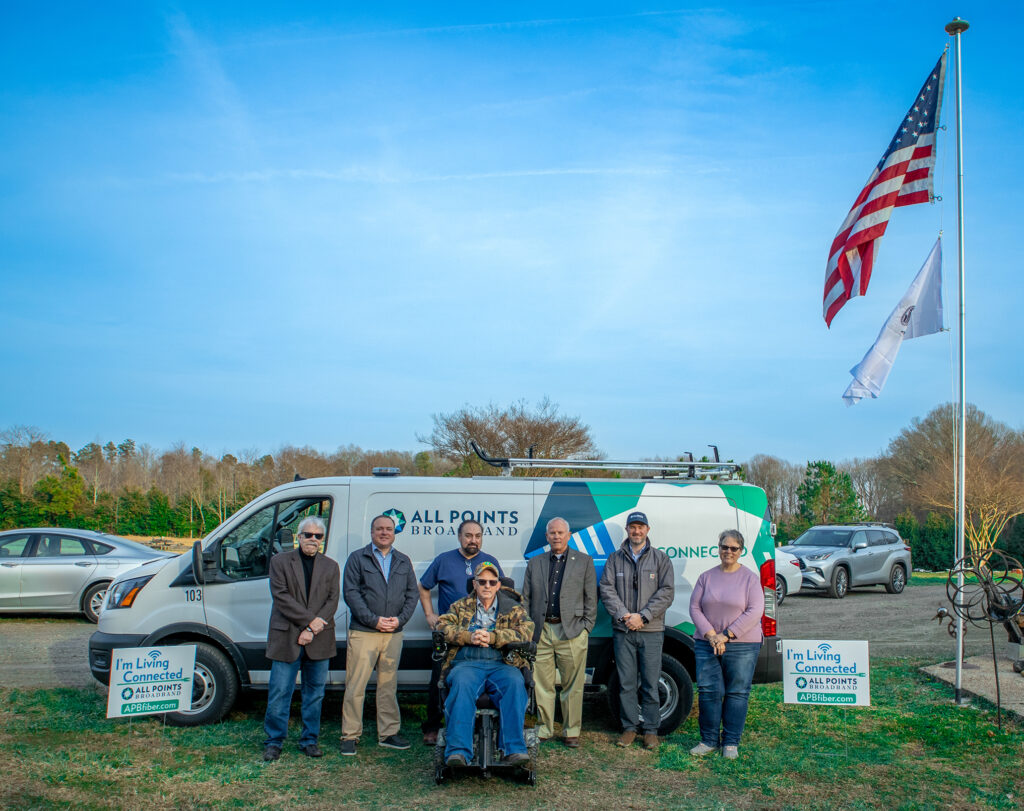
All Points Broadband Lights First Customer in Westmoreland County
All Points Broadband celebrates the first customer lighting in Westmoreland County.
Read more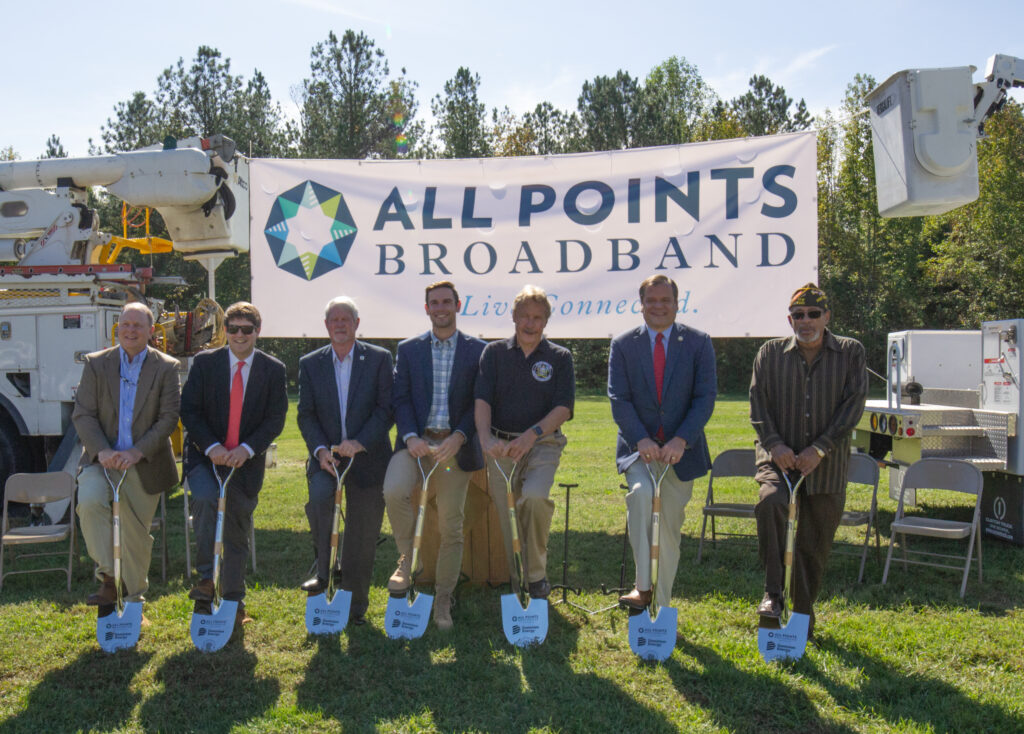
King William County and Partners Celebrate Groundbreaking for County Broadband Project
King William County, All Points Broadband and Dominion Energy Virginia held a groundbreaking ceremony for a fiber-to-the-home broadband project that will deliver service to more than 2,200 unserved homes and businesses in King William County.
Read more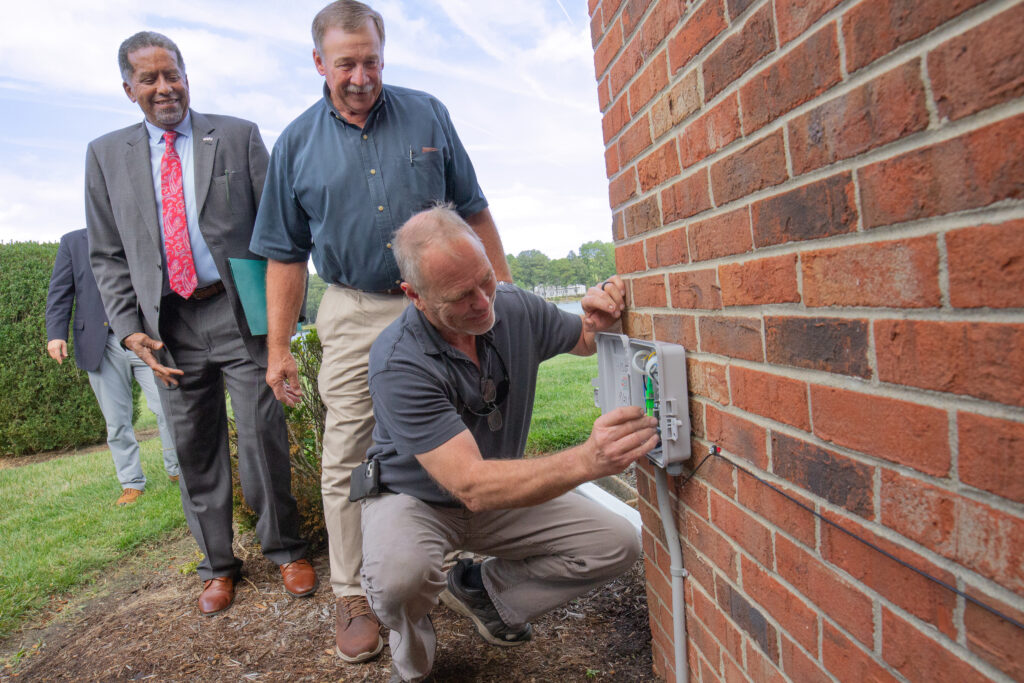
First Northumberland County Customer Connected to All Points Broadband’s Regional Fiber Broadband Network
The Northern Neck Broadband Initiative celebrated its first fiber-to-the-home broadband connection to select locations in Northumberland County
Read more